What client previews are for
An email does not have one rendering, it has as many as there are mail clients. Before displaying it, every webmail and every app reworks your HTML: Gmail replaces the <body> tag and ignores some CSS properties, SFR and La Poste strip your <style> blocks entirely, Outlook.com refuses element positioning, and so on.
The outcome is a campaign approved in your sending tool that reaches part of your recipients with a colourless button, stacked columns or a missing background. And nobody tells you.
The Client rendering section of the Rendering tab rebuilds how your email displays in the main mail clients, before you send, and tells you exactly what each of them changed. It is the screen to open before approving a campaign, especially when your template relies on an elaborate layout.
Covered clients
| Client | Simulated version |
|---|---|
| Apple Mail | iOS and macOS |
| Gmail | Webmail |
| Outlook.com | Webmail and new Outlook |
| Yahoo Mail | Webmail |
| Orange | Webmail |
| SFR | Webmail |
| La Poste | Webmail |
| Free | Webmail |
Outlook for Windows (classic version) and the Gmail and Outlook mobile apps are not available as previews yet. They are covered by the compatibility analysis, further down the same tab.
Opening the previews
- Log in to your account, which is free to create, then start a test from the home page: send your email, exactly as you would send it to your customers, to the test address you are given.
- Once the analysis is complete, open the Rendering tab of the results page.
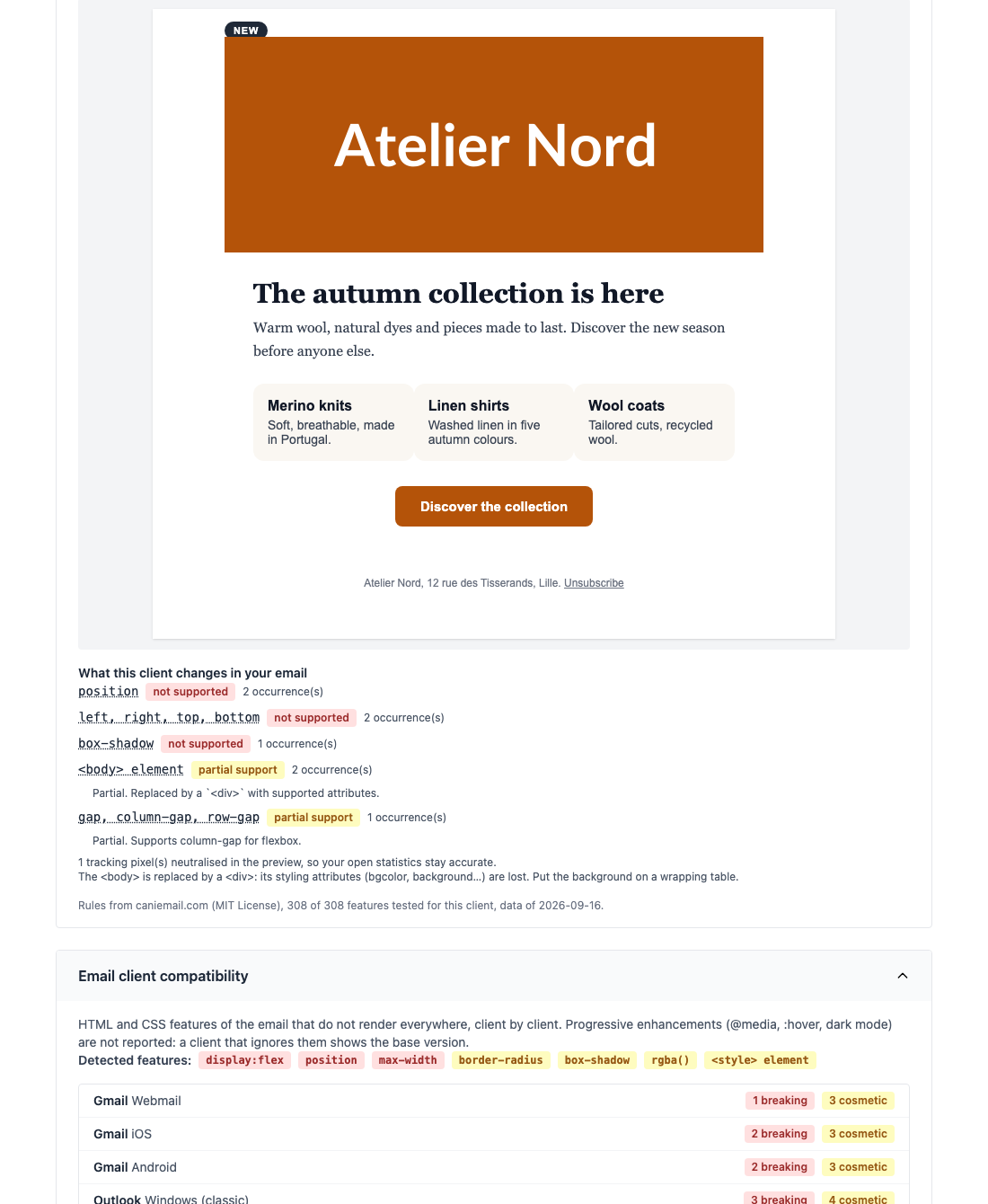
- The Apple Mail iOS preview shows up. Click another client to switch. The first display takes a few seconds, the following ones are instant.
Reading a preview
Each preview is displayed at that client’s width: 390 pixels for Apple Mail iOS, between 720 and 900 for the others. On iOS, an email wider than the screen is shrunk to fit, as the Mail app does.
Tick Show modified areas to outline every element the client reworked: an ignored CSS rule, a replaced tag, an image that does not show.
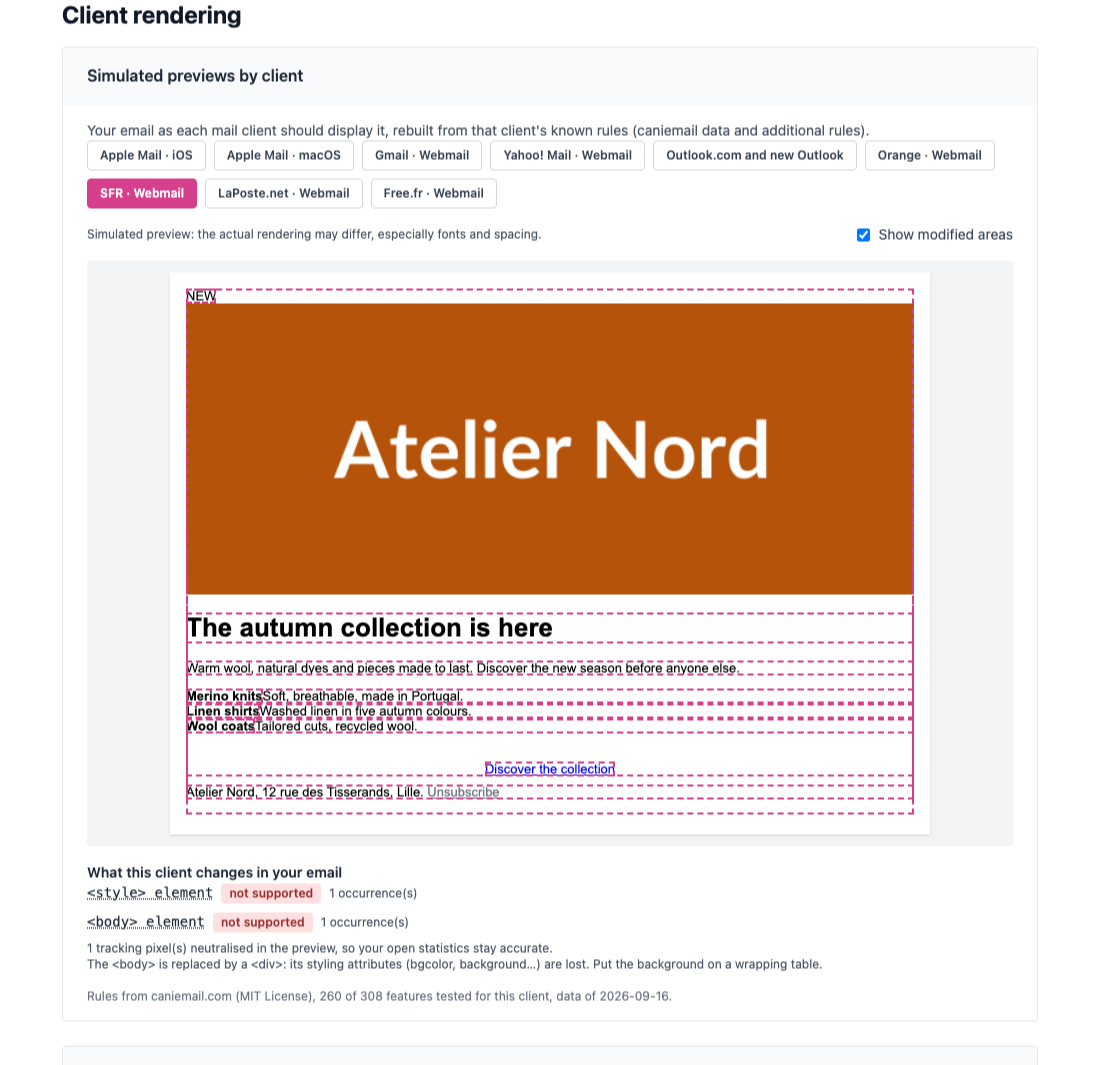
<style> block is removed: every element styled by the stylesheet is outlined.Below the preview, What this client changes in your email lists every change, with:
- the name of the feature involved, linking to its detailed page on caniemail.com;
- its status: not supported when the client ignores it entirely, partial support when only some values or syntaxes are refused;
- the number of occurrences in your email;
- for partial support, the exact rule that client applies.
Two pieces of information may appear at the bottom of the list. The tracking pixels of your email are neutralised in the preview, so that displaying it does not count as an open in your sending tool’s statistics. And when the client replaces the <body> tag, its styling attributes (bgcolor, background) are lost: put your background colour on a wrapping table rather than on the <body>.
The compatibility analysis
Below the previews, the Email client compatibility section approaches the problem from the other end: it spots risky HTML and CSS features in your code, then lists, client by client, those that are not supported.
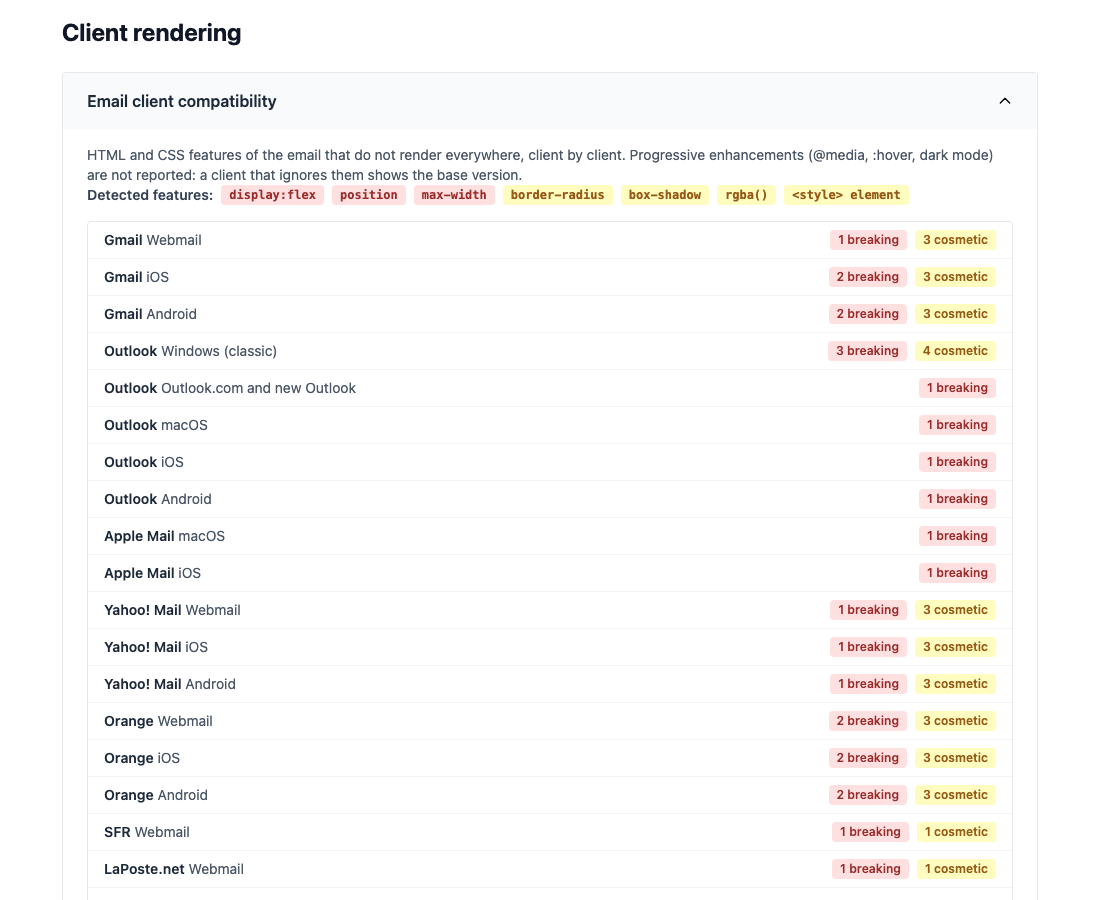
Issues come in two levels:
- breaking: the layout breaks or content disappears, for example columns in
display:flexin Outlook for Windows or an SVG image that does not show; - cosmetic: an effect is lost, such as rounded corners, a shadow or a web font.
Two cases are deliberately not counted. Rules inside a @media query are progressive enhancements: a client that does not understand them simply shows the base version. And if your email contains Outlook conditional comments (<!--[if mso]>), Outlook for Windows is judged on the content reserved for it, other clients on the rest.
Frequently asked questions
Why does my email background disappear in Gmail?
Gmail replaces the <body> tag with a block of its own page: a background colour set on the <body>, as an attribute or in CSS, no longer applies. Put it on a table wrapping the whole email.
Why does my email lose all its styling at SFR and La Poste?
These webmails strip <style> blocks. Only styles written directly on the elements, in their style attribute, are kept. Most sending tools can inline styles automatically before sending: turn that option on.
Does the preview fire my tracking pixels? No. Tracking pixels are neutralised before display, so your open statistics stay accurate.
Is my email sent to Gmail, Orange or the other clients to build the preview? No. Previews are computed on our servers, and your email is not passed on to any of these services.
Going further
The blog article Why your email does not look the same in Gmail, Outlook and Orange explains in detail what each client does to your HTML, and how to design a template that holds up everywhere.